Standard Guide Administrative 3D to In Checklist From AZ
Why prepare 3D files before printing?
File 3D is the input of the entire print process. If the file fails, the printer no matter how good it is to produce the product that reaches the request. A careful preparation of files helps:
Printing error limit failed
Save time and material costs
Make sure the size and shape are properly designed
Advanced product surface quality
The process of creating a complete 3D print file

To create a 3D print file that can be used effectively, you need to go through multiple segments, starting from suture to form ideas until you've completed post-print data processing.
Basic steps to create 3D print file
The first step is 3D model design using specialized software such as AutoCAD, Blender or equivalent tools. Each piece of software will be in accordance with different purposes, so you should learn and choose the solution according to your needs.
In the 3D printing field, the two most commonly used file formats are OBJ và STLYeah. In it, format STL is often preferred due to high compatible capabilities with multiple print lines and 3D print processing software.
Engineering Elements to Note When Designed
In the process of modeling, you need to pay special attention to some important elements:
The Closeness of Model: File 3D needs to ensure aangular structure, no gap or lack of face. If the model is not sealed, the printer may not properly identify and lead to errors when printing.
Thick to Object: The thickness must be set clear from the design and consistent with the print parameters. The design is too thin or in sync with printer installations that will directly affect the duability and quality of the product.
Combination of Blocks: When models are created from various blocks, make sure the blocks are fully merged, no more intersecting parts or overlaps cause confusion for the printer.
small details processing: Details such as Braille, flowering, or small textures need to be scaled in a reasonable size so that when printed still retains clarity and accuracy.
After finishing the design, you simply export the file by selecting gt; Exeter, then save in format STL or OBJ to be ready to insert into 3D printing process.
Guide to 3D print output for new starters

After having the complete 3D model, the next step in the 3D printing process is to convert that model into Command Data so that the printer can read and carry out. This job is processed through Slicer softwarewhere models will be divided into classes and converted into Gcode files.
Here are the basic steps that allow you to create a standard Gcode file, from the time you prepare the model until you are ready to print on the machine.
1. Design or Prepare Model 3D
You can create your own model with 3D design software such as AutoCAD, Blender, Fulton 360, SkitchUp... Additionally, new people can download files from models sharing libraries such as Tingivers or Printables.
After completion of the design, the model needs to be exported to the appropriate format for 3D printing, most commonly known as STL either OBJ.
In most software, this operation is done by entering gt; Exeter and select the desired format.
2. Open STL/OBJ files in Slicer software
Next, use the Slicer software as Cura, Prussa Sliccer or Slic3r to process print files.
Open software, select Load Model either Open File, then enter STL/OBJ files that have just arrived.
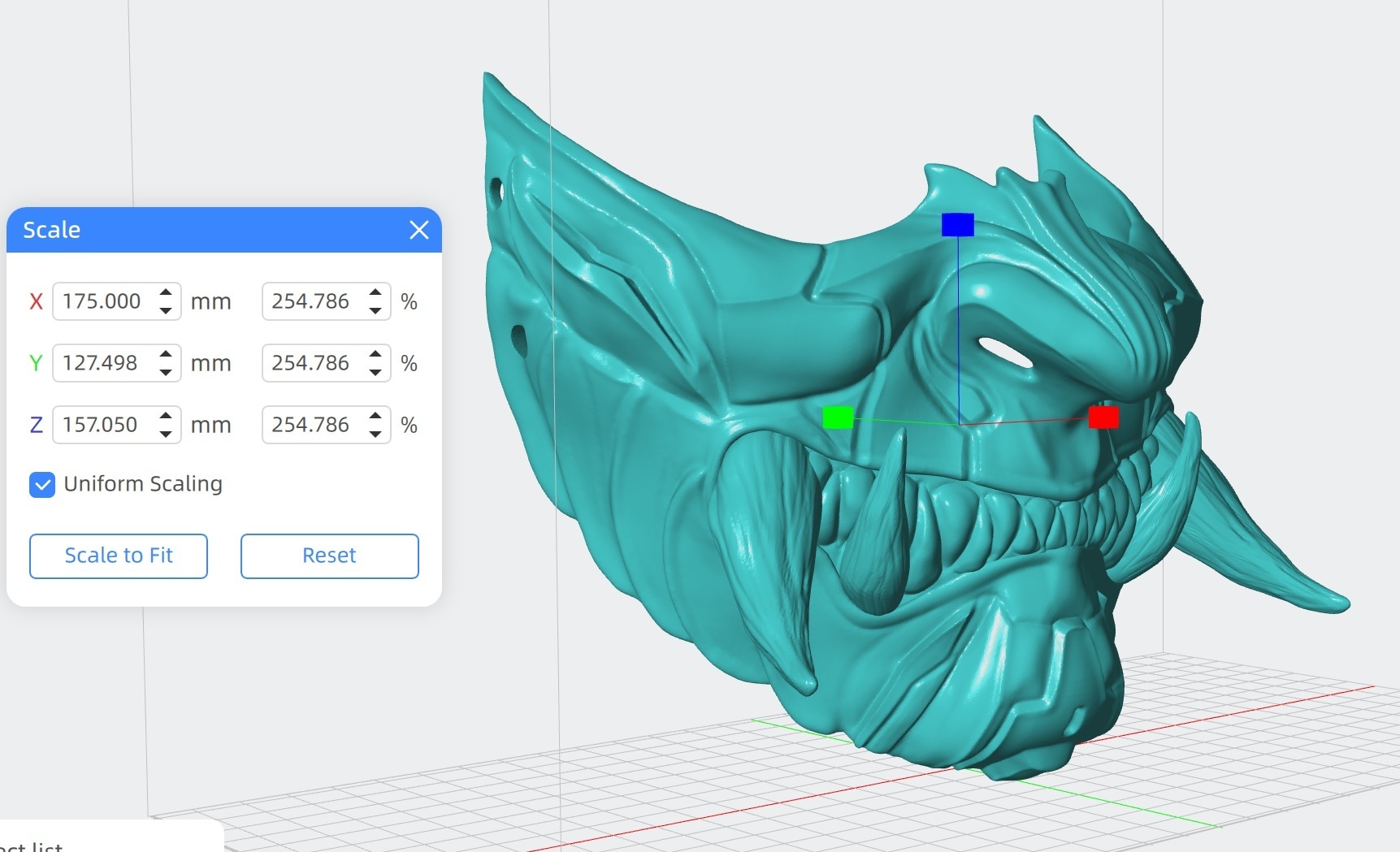
When the model displays on the screen, you can rotate, zoom in or check the overall form to make sure there are no errors before printing.
Three. Set print parameters in Slicer software
At this stage, you need to configure important print parameters, including:
Layer height layer thickness: Effects on surface smoothness and print time.
Infill Solid Inside: determine the product's hardness and weight.
Supports support structure: Necessary with apparent or suspended details.
Print head temperature, print table and print speed: Set according to materials used as PLA, ABS or PETG.
Before you continue, you should preview the preview of each layer of print to ensure that the model can be successfully printed.
Four. Gcode File Export
After completing the installation, select Exeter Gcode either Save Gcode to create print command file.
The Gcode file contains the complete printer controller information, from the print head movement to the process of material in layers.
Note that each Gcode file is only consistent with a specific printer configurationYeah. When changing machines or parameters, new files are needed.
Five. Convert Gcode files to 3D printers and start printing
Finally, copy the Gcode file to the printer via the SD, USB, or direct connection.
Prior to printing, the printing table needs to be checked, the level is adjusted and the printing material is properly loaded.
When the machine starts, keep an eye on it. initial print class In order to ensure that the material is well-held and the printing process takes place stable.
Mastering the preparation and exporting of 3D print files is the basis for producing high quality print products. When you understand each step, from the pattern processing, setting the print parameters to the creation of the Gcode file, the risks such as error, error or waste of materials will be significantly reduced. Whether at the new stage of approach or already familiar with this technology, holding on to the process will help you to work more effectively, saving time for operating and harnessing the maximum capacity of 3D printers.