The 3D printing machine is full of Cause, Processing and Defensive Solutions
In the process of operating a 3D printer, the incident that caused many users the most anxiety was the condition printer out of plasticYeah. A print that lasts for hours, even decades, may be interrupted simply because there is not enough filament left to continue. This took not only time but also a waste of materials and direct effects on the progress.
The following article will help you to appreciate the nature of the plastic error when you print 3D, analyze the causes in detail, guide the right techniques, and offer effective prevention solutions to ensure that the printing process is consistently stable, continuous and professional.
What is it?
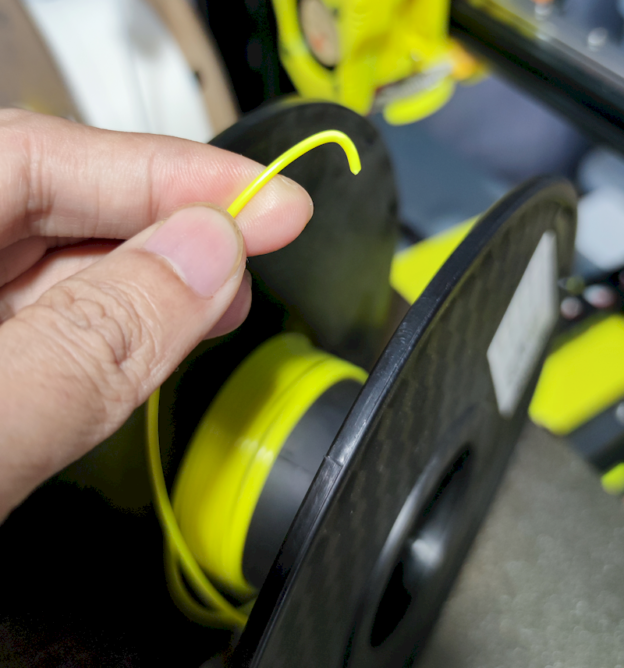
The 3D technology FMM printer operates by melting filament and chrome into thin layers to form a complete model. When the filament roll runs out or the plastic level system malfunctions, the print head will no longer have the material to cut out. At this point, the machine can:
Stop if you have a filament sensor
Or continue to move without plastic without detecting errors
This phenomenon is collectively known as 3D printer error out of plastic.
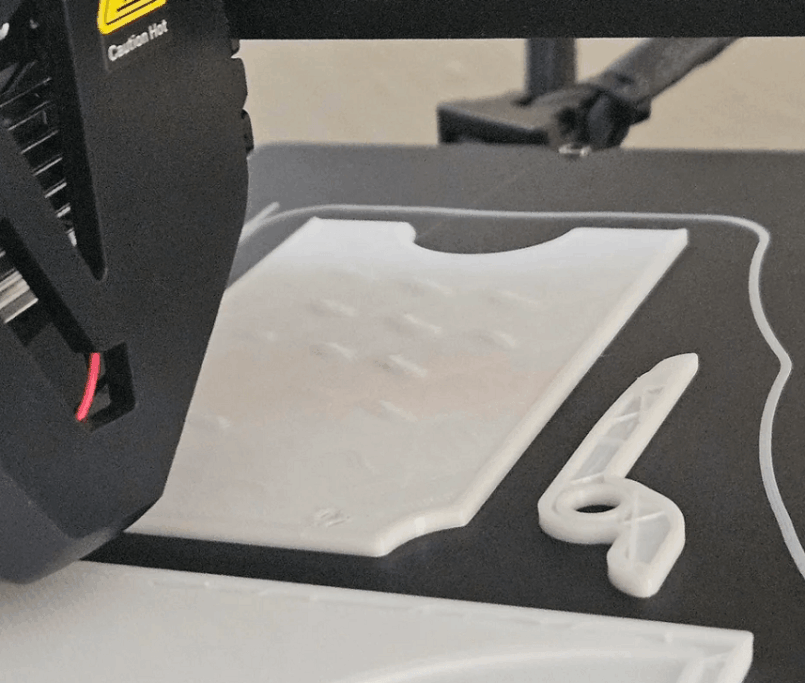
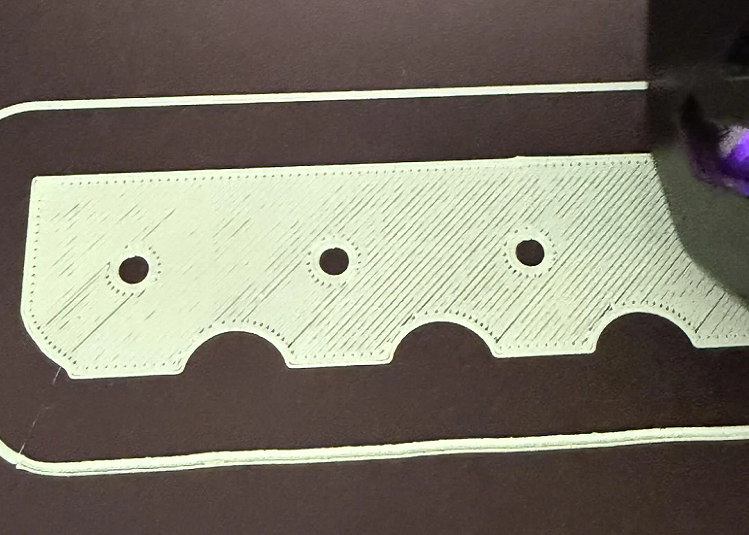
This incident may seem simple but may cause the printing to be lacking in layers, empty in the upper section, or unable to recover if not handled in time.
Why is the 3D printing machine all wrong?
State 3D printer out of plastic in between is a fairly familiar error for users, from personal to professional printing. However, not everyone understands the real cause behind this incident. The correct identification will help you to take the initiative to avoid and restrict interruptions during the printing process.
Below are the most common causes that lead to plastic failure when printing 3D:
No Filament Quality Check before In: The most common cause is to start printing when the filament scroll is no longer sufficient material for the entire model. If the user does not track the amount of plastic left or uncalculated based on the parameters from the slicing software, the machine will stop as soon as the plastic fiber is completely shallow. With large-sized or long-time printing plates that lasted for hours, only a slight deviation in the estimate of materials could also cause the process to be interrupted between the lines.
Unsubscripted Filament Reserve: In many cases, users discover that plastic is running out but there is no substitute roll available. This lack of preparation caused the machine to stop for long or be forced to cancel the print if it could not be replaced in time. Especially with the continuous production environment, the lack of backup material will directly affect the progress.
The Instrumental Printing Machine Completes: Some 3D printer lines are low segmented or the old age is not equipped with filament detection sensors. As the plastic ran out, the machine continued to move the print head without warning. This causes users to detect only errors when the print has been missing classes or the upper section has no more material, causing significant waste.
The Filament Non-President Activity Sensation: Even if the machine has sensors, if the condition is faulty or the connection is unstable, the warning signal may not be sent correctly. As a result, the machine did not stop in time when the filament ran out.
Firmware or the Non-President Moderator: The use of non-primware, obsolete updates or non-compatible control software can also cause the detecting feature to run out of bad plastic. In some cases, the system takes no note of the signal from the sensor, losing the automatic pause function.
Filament is either stylized or mixed in the In Process: In addition to the fact that the plastic roll is actually shallow, filament may be broken due to a wet or disorder in Bristol. At the time, the level cannot pull plastic fibers into the print head, causing the same phenomenon as the out of plastic.
Processing When the 3D Printing Machine Ended During Printing
The 3-D printer run out of plastic between doesn't mean you have to destroy the entire print. If handled properly, you can fully continue printing without affecting the product quality. The following are simple but effective solutions that help overcome this incident.
take the Filament Checker before Print
Before starting any project, the first thing to do is test the remaining amount of plastic on the roll. Do not only estimate by eye you can balance the filament roll to determine the exact number of grams remaining.
For large or time-long printing plates that lasted for several hours, a alternative plastic roll was prepared to be placed near the machine. This preparation will help you to respond quickly if you develop a situation where you run out of plastic.
Stop Machine and Replace Filament correctly
When all plastic is discovered during the printing process:
Use Pause function to suspend the host
The first thermos print the right temperature of the material in use
Retrieves the remaining filament from extruder
Move new plastic fibers in and use the Load Filament feature to push down nod
Check the flow of fluids before continuing printing
If the machine has Resumprint function, you can continue printing at the stopped position.
Pages or Upgrade of Filament Transformation
If your printer is not integrated the sensor detects all plastic, the upgrade of additional sensors is essential. This device allows the machine to stop automatically when the filament is cut off or empty, avoiding the initial state of the print which does not damage the product.
With 3D printers regularly or working in production environments, the available printer selection will ensure stability and reduce risk reduction.
Firmware History and Main Squirt
Firmware and control software play a significant role in signal recognition from sensors. Make sure you're using the company's main version, updated from the prestigious producer.
The use of non-compatible software or obsolete firmware may cause the warning function to run out of proper plastic activity.
Computing Computing With Soft Slicing Part
Softwares such as Cura, Prussa Slicer or Simplify3D provide detailed information about:
The amount of filament consumed by meters
Volume of material gram
Synchronising folder
Based on these parameters, you can prepare enough materials before you start, limiting the maximum risk of intermission.
Error 3D printer ran out of plastic while printing It's a common but completely controlled incident if you actively test the material, use the precise computing software and the appropriate filament sensor equipment. Careful preparation before printing helps not only to avoid interruptions but also to ensure the quality of products and save the cost of long-term materials.
For regular 3D printing users, especially the production environment or service environment, the complete warning system investment and the stable firmware is the sustainable solution to optimizing performance performance.
If you are experiencing a 3D printer incident, you need to upgrade the filament sensor, maintain the plastic level system or search for a steady print line, the firm itself DETSA ready to support you.
DETSA provides:
The main 3D printer, the plastic integration
High Quality 3D Printing Supplies and accessories
Tech support, maintenance and solutions counseling are appropriate.
Print optimum settings guide help limit interrupt error
 Do not let all your plastic mistakes affect your progress.
Liên hệ ngay DETSA to receive detailed advice and choice of 3D printing solutions that are most suitable.